Since the pandemic, employers around the world have needed to change. They’ve had to shift how their employees operate. Remote work is very much here to stay. Organizations and employees can both benefit from the work-from-home and hybrid work revolution.
Cost savings is a driver for supporting remote work. Employee morale and productivity also can be higher when employers grant this flexibility.
A majority of organizations support some type of remote work. Statistics show that:
16% of companies are completely remote
40% support hybrid office/remote working
44% don’t allow employees to work remotely
While there are benefits, there are also challenges to this new environment. Employers worry about the cybersecurity risks of remote teams. Managers can find it more challenging to make sure employees are doing what they should do.
The remote and hybrid work environment has led to the rise of employee monitoring tools. These tools have mixed reviews from employees.
What Is Employee Monitoring Software?
Employee monitoring software tracks digital movements. This can include everything from general clock-in clock-out tracking to taking screenshots of an employee’s computer several times per hour.
Tracking tools like Hubstaff and BambooHR track many activities on a person’s computer. The information is then sent in a daily or weekly report to the company.
Items that these tools can track are:
Time clock
Keyboard activity
Keystrokes
Mouse activity
Websites visited
Screenshots of the desktop
Apps used and how long in use
The most invasive of tools can even track the sounds and video of the employee. Tracking can be visible, so the employee knows about it or hidden from the employee. It depends on the tool used and the ethical considerations of the employer.
This type of monitoring can benefit an organization worried about “productivity theft.” But it can also alienate good employees and torpedo morale and trust. We’ll go through the pros and cons to weigh before you set up this type of system.
Pros of Activity Monitoring Tools
Helps Managers Understand How Employees Spend Their Day
One feature of many tracking tools is the ability to track time by project. This helps managers understand where employees are prioritizing their time. Knowing how much time employees spend on a project helps with ROI projections.
Reduces Non-Work Activities During Working Hours
One thing that employers worry about with remote employees is that they will waste time. A manager doesn’t want to pay someone only to find out the employee spent half their time on Facebook.
About half of monitored employees spend 3+ hours per day on non-work activities. When employees know that their boss is monitoring their app usage, they’re less likely to goof off.
Can Be an Easy Way to Track Time for Remote Workers
Smaller companies that work with fully remote teams may find tracking tools convenient. Employees or freelancers can track their time at the click of a button. Employers can put an hour-per-week cap on time. They can also manage payments automatically through the app.
Cons of Activity Monitoring Tools
Hurts Employees’ Morale & Productivity
Many employees feel they are put in a cage when monitoring is introduced. Morale can plummet, which takes productivity along with it.
Instead of focusing on work completely, various thoughts go through employees’ minds. Such as, “If I think about this problem too long, is the tracking going to give me a low productivity score?” Or “What happens when I’m on the phone with a customer and not moving my mouse around? Will the tracking make it look like I’m not working?”
Some of the feelings that employees can have when monitored are:
Betrayed
No longer trusted
Loss of company loyalty
Hurt
Treated like a number instead of a person
“Activity Monitoring” Doesn’t Mean Productivity
Many of these tracking tools send employees and employers “activity reports.” These reports simply look at keyboard and mouse activity during a specific time.
But what if the employee must solve a workflow issue and needs to use their brain, not the mouse? What if a salesperson is on the phone with a customer, not using their keyboard? Zoom calls bring a similar quandary. If you’re in a Zoom call, your mouse and keyboard aren’t being actively used as they would if you are typing.
Yet, the activity report doesn’t include this information. It will simply give a score of x% based on keyboard and mouse activity. This could make an employer think a worker was goofing off when they were actually working hard.
Costs Organizations Good Employees
Nearly half (47%) of surveyed tech employees stated they would quit if their boss tracked them. Employers implementing monitoring can alienate good employees and make them feel untrusted. They can also feel unappreciated.
When you relegate everyone to a number of keyboard strokes, you constrain creativity. Good employees often stay with companies where they feel appreciated and can grow. Once that’s gone, they’re likely to leave.
Finding a Balance
A few things to think about when finding the right balance between tracking too much or too little are:
What do you really need to track?
Should you treat all employees the same?
What do your employees think about monitoring?
Are you trying to solve a problem that doesn’t exist?
What features are unnecessary that you can turn off?
Is the tool giving you accurate data related to productivity?
Get Expert Advice on the Best Tools for Your Business
Cloud tools are an important part of your business. You should deploy them thoughtfully. Give us a call today to schedule a chat and get valuable advice.
You often hear the words “digital transformation” and “collaboration.” But what do they actually mean? What do they mean for the day-to-day of running your business?
Collaboration can’t happen without shared goals. When departments are siloed and unconnected, priorities can conflict. People are doing their best but may not be moving in the same direction.
Digital transformation is simply the use of technology to better reach business goals. This encompasses moving from analog ways of doing things. Transitioning to tools that are more automated and connected.
Microsoft has been at the forefront of digital transformation and collaboration. Its Viva platform drives an improved employee experience. It does this by use of AI, automation, cloud connectivity, and more.
In this article, you’ll get an overview of Microsoft Viva. Then, we’ll dive into one of the newest Viva offerings, Viva Goals. We’ll explore what it does and how it can help your company meet its targets.
What Is Microsoft Viva?
Microsoft Viva is a line of employee experience applications. These connect to the Microsoft 365 platform, and especially Microsoft Teams. The apps act as add-ons that can build on your organization’s digital capabilities.
There are currently seven apps within the Microsoft Viva line:
Viva Topics: Allows organizations to harness knowledge and experience. It serves up relevant topics from the company knowledge base from keywords.
Viva Connections: Gives employees a personalized and connected newsfeed. The company newsfeed serves up important news, conversations, and tools.
Viva Learning: Consolidates employee training apps. Makes it easy for employees to gain new skills from inside the MS Teams application.
Viva Insights: Improves employee well-being and corporate culture. Uses data-driven insights to provide productivity and well-being recommendations.
Viva Sales: Reduces the data input needed from salespeople. Serves up helpful lead interaction recommendations.
Viva Engage: Cultivates personal networks and community. Fosters engagement and knowledge sharing.
Viva Goals: Enables clarity and alignment of corporate goals.
The Viva line expands what businesses may traditionally see as “software.” It creates a connection between Microsoft Office and M365 apps. It also focuses on the people, rather than the tool. Microsoft designed Viva applications to use AI. This makes work easier and gives visibility into actionable data points.
What is Viva Goals?
Viva Goals is one of the newest Viva applications from Microsoft. It connects teams so they’re moving toward a shared set of goals. Employees align, whether someone works in the accounting department or customer support.
Business leaders can look at Viva Goals as a way to solidify company objectives. They can then tie these objectives to meaningful targets for each department.
For example, say you have a corporate target to provide exceptional customer support. This goal by itself is generic. It doesn’t connect to what teams need to do to make it happen.
In Viva Goals, that target can have directives for various teams. Such as customer support reducing ticket resolution by 8 hours. This brings goals to a meaningful level and allows organizations to track progress.
Here are the key value-adds of using Viva Goals.
Aligns Your Team to the Same Goals
Viva Goals puts company goals and targets in a tangible form. There is a definition of success for teams and individuals. Work outcomes are directly connected to company-wide objectives.
Everyone is on the same page, rather than departments pursuing different targets. With alignment, companies can more easily reach their goals.
Maintains Focus on Goals
Viva connects to other M365 apps, making it easier to gather data insights. These insights help leaders more easily see goal progress.
Employees stay focused on goals. This is because goals connect to their daily work targets. Rather than being something they hear at a company event, goals get infused into the workflow.
The integration with Teams keeps goals front and center. Employees get recognized for meeting targets and helping the company achieve its goals. This keeps everyone engaged and moving together.
Progress towards goals isn’t kept on a spreadsheet on someone’s cloud drive. Instead, stats on goal achievement live in tools used daily. When goals remain visible, organizations have a better chance to achieve them.
How Do You Get Viva Goals?
If you want to subscribe to Viva Goals as an add-on to your M365 plan, it is currently $6.00/user/month.
For the entire suite of Viva applications, the current price is $9.00/user/month.
Questions About Microsoft 365 or Viva Goals?
Digital transformation with tools like Microsoft Viva is a necessity if you want to keep up. Old ways of doing things are giving way to the cloud, AI, and machine learning. We can help you navigate that territory. Give us a call and schedule a consultation to learn more.
The global pandemic put a big emphasis on the need to run a business from anywhere. Enabling employees to work remotely requires cloud solutions. This includes collaborative platforms like Google Workspace and Microsoft 365. VoIP (Voice over Internet Protocol) phone systems have also become critical.
VoIP allows companies to stay in contact with customers and potential customers. Employees can work from anywhere and still answer the business phone line. Callers get a similar experience no matter where employees may be working, office, or home.
When you have people working from home, those old landline systems are inefficient. This has led to a large movement by businesses to VoIP. Both for necessity and cost-savings.
According to Microsoft, 82% of organizations have reported saving money after implementing VoIP.
While VoIP is the way to go for the future, this doesn’t mean it’s foolproof. Companies that don’t set up their system efficiently, can experience issues. This includes things like dropped calls, low bandwidth, and features left unused.
If you’ve been struggling to make your cloud phone system more efficient, check out these tips below. They provide setup best practices for VoIP. Use these to positively impact your bottom line.
1. Check Network Capabilities
You can’t just assume that you can enable a VoIP system, and all will be well. Your network may not be able to handle the extra bandwidth needs without adjustments.
Things you want to look at include jitter and packet loss. Additionally, review router settings to make sure it can handle peak traffic times. Experiencing dropped calls or choppy audio shows a need to address issues. These may include adjusting network hardware and/or increasing your ISP bandwidth.
2. Prioritize Your VoIP Software Using QoS Rules
Quality of Service (QoS) is a router settings area that allows you to say which traffic is most important. If QoS is not in place, it means resource issues. A large cloud backup could kick in and interrupt your calls because it’s taking up bandwidth.
QoS sets up “traffic lanes” that give priority to certain functions. You’ll want to have your VoIP software prioritized to get the bandwidth it needs. This avoids issues with less critical processes hogging up internet resources.
Using QoS keeps your calls smooth. It also improves the reliability of your cloud phone system. It’s also a good idea to use these rules for other important cloud activities.
3. Provide Quality Headsets for Your Team
A cheap headset can ruin the call experience for a potential customer. If someone calls in and can’t hear anything or gets choppy reception, they’ll quickly get frustrated. They will most likely figure that your company doesn’t have its act together.
Your employees may not be able to afford high-quality headsets. They also may not know what type to buy. Head off potential problems by issuing quality headsets for your team to use.
4. Set Up Departments & Ring Groups
One of the great features of VoIP phone systems is the ability to set up ring groups. You first set up your department groups (accounting, marketing, etc.). Then set the included employee extensions.
Creating a ring group allows you to have a call go to your customer support department as a whole. This is better than one person, who may be busy. That way, the whole group gets the ring, and the first available person can pick up.
Ring groups improve the caller experience by reducing the wait time. It can also mitigate the need for the caller to leave a voicemail and get stuck waiting on a callback.
5. Create Your Company Directory
Auto assistants are extremely helpful and nearly all VoIP systems have them. First, you set up your company directory and then record messages to prompt the caller.
For example, you can set up a message that prompts them to input the last name of the person they are trying to reach. If they aren’t calling a specific person, they can be routed to a department.
While setting up a company directory takes a little effort upfront, it will save much more. You no longer will need to have someone specifically routing every call. Callers can also get to the person or department they need faster. This improves the customer experience and boosts office productivity.
6. Have Employees Set Up Their Voicemail & VM to Email
When you get out of a long meeting, going through a bunch of voicemails can take time. Instead of having to listen to each one to see which calls are a priority, you could simply read through them.
The voicemail to email feature in VoIP phone systems will automatically transcribe voicemails. They are then emailed to the recipient. This improves efficiency. It also eliminates wasted time having to listen to entire messages to know who called.
Have employees set up this feature with their extension and email address. Some VoIP systems also offer an option to have transcribed voicemails sent via SMS.
7. Train Your Team on the Call Handling Process
Don’t leave your employees to jump in and learn a VoIP system themselves. It’s important to train them on the features and the company calling process. This ensures that your team can enjoy all those time-saving features.
Get Help Enhancing Your Business Phone System
Need help improving your business phone system? Looking for a better customer experience? Give us a call and schedule a consultation. We can help!
One constant struggle in offices is the balance between productivity and security. If you give users too much freedom in your network, risk increases. But add too many security gates, and productivity can dwindle.
It’s a fine balance between the two, but one you can achieve. Businesses need to recognise the importance of both. And not sacrifice one for another.
A recent report from Microsoft notes a dangerous lack of authentication security. Just 22% of Azure Active Directory users had multi-factor authentication (MFA) enabled. This means that over three-quarters were at a much higher risk of an account breach.
Why do businesses fail to adopt important security protocols, like MFA? We know that it’s as much as 99.9% effective at stopping fraudulent sign-ins. Yet so many companies aren’t adopting it.
User inconvenience is the biggest reason. MFA is not expensive. In fact, it’s free to enable in nearly all cloud applications. But if users say that it’s hurting productivity and is a pain to use, companies may not bother with it.
But sacrificing security can hurt productivity worse. Downtime due to a data breach is expensive and can put smaller companies out of business. The main cause of data breaches is credential compromise. So, if you’re not protecting your authentication process, the risk of becoming a breach victim is high.
35% of data breaches initiate from breached login credentials.
There are ways to have both secure and productive users. It simply takes adopting some solutions that can help. These are tools that improve authentication security. But do it in a way that keeps user convenience in mind.
Solutions to Improve Security Without Sacrificing Convenience
Use Contextual Authentication Rules
Not every user needs to go through the same authentication process. If someone is working in your building, they have a certain trust factor. If someone is attempting to log in from outside the country, they do not have that same trust.
Contextual authentication is used with MFA to target users that need to reach a higher bar. You may choose to limit or block system access to someone attempting to log in from a certain region. Or you may need to add an additional challenge question for users logging in after work hours.
Companies don’t need to inconvenience people working from normal locations during typical hours. But they can still verify those logging in under non-typical circumstances. Some of the contextual factors you can use include:
Time of day
Location
The device used
Time of the last login
Type of resources accessed
Install a Single Sign-on (SSO) Solution
A report on U.S. employees found they use a lot of apps. Workers switch between an average of 13 apps 30 times per day. That’s a lot of inconveniences if they need to use an MFA action for each of those logins.
Single sign-on applications solve this problem. They merge the authentication process for several apps into just one login. Employees log in once and can go through MFA a single time.
Using multi-factor authentication isn’t nearly as inconvenient. Users gain access to everything at the same time. SSO solutions help organizations improve their security without all the pushback from users.
Recognise Devices
Another way to better secure network access is to recognise devices. This is typically done using an endpoint device manager. This automates some of the security behind user authentication. Thus, it doesn’t inconvenience the person.
First, register employee devices in the endpoint device manager. Once completed, you can then set up security rules. Such as blocking unknown devices automatically.
You can also put in place device scanning for malware and automated updates. Both these things increase security without sacrificing productivity.
Use Role-based Authentication
Your shipping clerk may not have access to sensitive customer information. But your accounting team does. One can have a lower barrier to authentication.
Using role-based authentication saves time when setting up new employee accounts. Authentication and access happen based on the person’s role. Admins can program permissions and contextual authentication factors once. Then, the process automates as soon as an employee has their role set.
Consider Adding Biometrics
One of the most convenient forms of authentication is biometrics. This would be a fingerprint, retina, or facial scan. The user doesn’t need to type in anything. It also takes just a few seconds.
Biometric hardware can be costly, depending on the size of your business. But you can introduce it over time. Perhaps using biometrics with your most sensitive roles first, then expanding.
Additionally, many apps are now incorporating things like facial scanning. Users can authenticate using a typical smartphone, making it much more affordable.
Need Help Improving Authentication Security?
Don’t give up important security because you’re afraid of user pushback. Give us a call and schedule a security consultation.
Microsoft Teams is a lot of things. It’s a video conferencing tool, a team messaging channel, and a tool for in-app co-authoring, just to name a few. During the pandemic, the popularity of Teams skyrocketed.
User numbers for MS Teams jumped from 20 million in November 2019 to 75 million in April 2020. As of this year, Microsoft reports a user count of 270 million for the platform. This makes it the most popular business tool for team communications.
But one of the things that makes the app popular is also one that can make the setup complex. Microsoft Teams has many moving parts, but to use them effectively they need to be well organized. Additionally, users need to have a chance to learn the system and train on best practices.
What Can Microsoft Teams Do?
First, let’s look at the different areas of Microsoft Teams and what it can do. Then, we’ll give you a simple setup checklist to help your team get up and running productively.
You can think of Teams as a virtual office in the cloud. It’s a centralized hub where teams can communicate, collaborate, and manage tasks. There is also an external communication component to Teams. You can use the app to video conference with anyone. You can also invite guests to a chat channel.
Here are some of the features of MS Teams:
Siloed chat channels
Security for team communications
Integration with Office apps
Integration with 3rd party apps
File sharing
Video and audio conferencing
VoIP phone system (with an extra add-on)
Keep all team resources in a single place
Microsoft Teams Versions
Some good news for small businesses is that there is a free version of Microsoft Teams. If you sign up for a Microsoft 365 business plan, you get the app included, but with a few more features.
Microsoft has also been pushing MS Teams for personal use. So, you can use it to keep your departments better coordinated at work. Or to manage family video calls or PTA meeting collaboration. It’s a versatile and scalable virtual office platform.
Easy Checklist for Setting Up Microsoft Teams
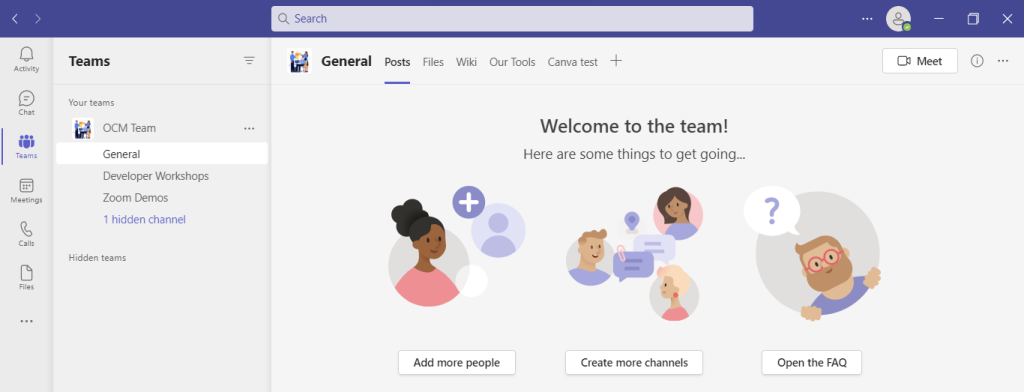
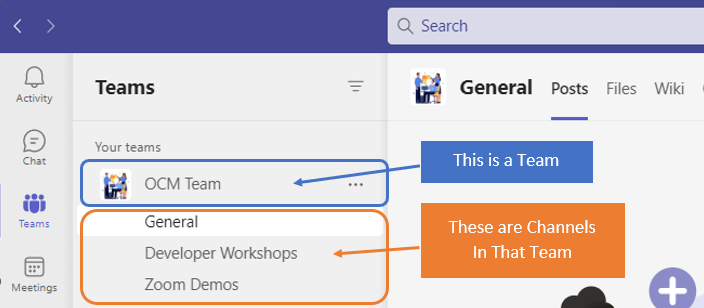
1. Set Up Your Teams/Departments
One of the advantages of Teams is that it allows you to set up specific areas for your groups to collaborate. You do not want everyone to set these teams up on their own, or you could end up with an unorganized mess.
Some ideas for setting these up:
Set up teams by department (accounting, marketing, etc.)
Add a company-wide team (where everyone can collaborate)
Set up teams by role (office managers, executives, etc.)
Typically, if you mirror the hierarchy of your organization, that’s a good place to start. Team areas are secured so only those users invited can see or access any of the content in that team.
2. Add Team Members
For each team, add the members allowed to take part in that team. These would be people that can see the resources posted in that team area. It would normally be the members of the department or group that the team is designed for.
3. Set Up Team Channels
The next level beneath the Team is the Channels. These team channels help organize conversations. For example, within a team set up for your marketing department, you may decide to add three channels. This keeps conversations more focused and makes it easier to find things.
For instance, you could have channels for:
Website Management
Social Media
Offline Advertising
Team channels are another area that you want to control. Don’t let everyone set up channels without a plan, otherwise, things get messy fast.
4. Set Up Team Tabs
Tabs are a great way to foster productivity. Say that employees on your accounting team need to access a tax reporting website. Inevitably, there can be time wasted asking for that link or a login. This is especially true if someone is filling in for a co-worker.
You can add that website link and info to the Tabs area at the top of the team channels. Just click the plus sign to add a new resource and consolidate things for your team members.
5. Schedule MS Teams Training
One of the reasons that company initiatives fail is that users weren’t properly enabled. If users aren’t trained on using MS Teams, then they’ll revert to using whatever they used before. This negates the benefits of moving to Teams when not everyone is onboard.
Work with a Microsoft professional to train your teams. We can provide tips on the most productive features. As well as short-cut their learning curve quite a bit! Make sure to have a realistic timeframe. You should also survey users on whether they feel they need more training.
Need Some Help Implementing Teams in Your Organization?
We can help you over many of the roadblocks that organizations face when starting with Teams. Contact us today for a free consultation to enhance your collaboration and productivity.
You think Zoom, you think video calls. For millions around the world, it’s a tool they rely on at work every day.
But for productivity, collaboration and workplace integration (as well as video calls), it’s Microsoft Teams that’s leading the way. Its tight integration with other Microsoft 365 services makes it so easy.
Now Zoom is looking for a piece of that action with the launch of a whole suite of features and services. They’re clearly designed to take on Teams and Slack head-to-head.
These will include email, a calendar app, and a virtual co-working space called Zoom Spots. Meanwhile a bunch of upgrades to the Zoom One platform are aiming to improve collaboration, keep chats flowing, and keep projects moving.
While it feels like a logical step for the video conferencing giant, it remains to be seen how widely adopted the new services will be. And before we recommend it to our clients, we’ll want to know that the levels of support, reliability and security are all bulletproof.
Many businesses are already committed to Microsoft Teams, which releases its own improvements almost on a weekly basis. But this is an interesting new development and we’ll be watching what happens carefully.
If you want to know more about the best tools to keep your team working smoothly together, just get in touch.
Published with permission from Your Tech Updates.
You could be losing a full-time working week for every member of your team, thanks to the hassle of setting up video calls.
Video conferencing has revolutionised team meetings, and saves a huge amount of travel time. But we’re still not getting the full benefit from the new technology, according to new research.
Employees aged between 18 and 24 take up to 10 minutes to get set up for each remote meeting.
Times that by a typical five meetings a week, and it’s suddenly lost you 40 hours every year. That’s a whole working week of wasted time – a figure that gets even higher when you look at older age brackets.
It isn’t necessarily a result of differing technological know-how. The research shows that employees blame the tech itself for the loss of productivity.
Almost a third of people said they didn’t have the right tools for the job, and 23% even said they felt excluded from remote meetings thanks to inadequate tech.
Employees often feel that the audio-visual (AV) technology they’re provided for remote and hybrid working simply isn’t up to the job. That means poor microphones that don’t play ball, jittery webcams that interfere with communication, or the wrong choice of video calling software. All that makes meetings harder to set up and causes them to take longer than they should.
Despite this, businesses that offer remote and hybrid working are reaping the rewards in many other areas, including staff engagement and performance.
But there is a solution.
Assess your employees’ AV technology to make sure their tools are not slowing them down – new webcams and microphones could be a cheap and simple fix.
It’s also a good idea to ask your employees to find out where they see that problems are occurring. If they are finding your existing system difficult to use, or slow to log in to, you should consider alternative options or better training.
If this is something that’s slowing you down, we can help – just get in touch.
Published with permission from Your Tech Updates.
The pandemic has been a reality that companies around the world have shared. It required major changes in how they operate. No longer, did the status quo of having everyone work in the office make sense for everyone. Many organizations had to quickly evolve to working through remote means.
During the worst of the pandemic, it’s estimated that 70% of full-time workers were working from home. Even now that the pandemic has hit a new waning phase, remote work is still very much a reality. 92% of surveyed employees expect to still work from home at least 1 or more days per week.
This transformation has forced companies to rethink the tools and policies they use. Many have also needed to completely revamp how they work. They’ve had to switch to a cloud-based digital workspace to enable a hybrid team.
This transition has brought newfound benefits, such as:
Lower costs for employees and employers
Better employee work/life balance
Higher morale
The same or improved productivity
More flexibility in serving clients
But, the transition to a digital workplace has also brought challenges and risks. These include:
Vulnerable networks and endpoints
Employees feeling disconnected
Communication problems
Difficulty tracking productivity and accountability
Increased risk of data breaches
20% of organizations experienced a breach during the pandemic due to a remote worker.
Overcoming the challenges and reaping the benefits takes time and effort. It also often takes the help of a trained IT professional, so you avoid costly mistakes.
Below are some of the biggest company mistakes when building a digital workplace. For the statistics, we referenced IGLOO’s State of the Digital Workplace report.
1. Poor Cloud File Organization
When companies go virtual for their workflows, files live in a cloud-accessible environment. If those cloud storage environments aren’t well organized, it’s a problem. It can be difficult for employees to find the files they need.
About 51% of employees have avoided sharing a document with a colleague for this reason. They either couldn’t find it or thought it would be too hard to find. It’s notable that this is the highest percentage recorded for this stat in the IGLOO report. Meaning that this problem is getting worse.
Some tips for making shared cloud storage files easier to locate are:
Keep file structure flat (2-3 folders deep)
Create a consistent hierarchy and naming structure
Don’t create a file for fewer than 10 documents
Archive and delete older files monthly to reduce clutter
2. Leaving Remote Workers Out of the Conversation
No one likes to hear people start talking about something at a meeting and realize they’re lost. They missed an important piece of an earlier conversation. Many companies haven’t yet overcome in-person vs remote communication challenges.
In fact, nearly 60% of remote workers say they miss out on important information. This is because colleagues first communicated it in person. Efficiency suffers when in-office workers make decisions without regard for remote colleagues.
Managers and bosses must lead the way in changing this culture. While old habits do take a while to change, mindset can transition to be more inclusive of the hybrid world.
3. Not Addressing Unauthorized Cloud App use
Unauthorized cloud app use (also known as Shadow IT) was already a problem before the pandemic. That problem escalated once people began working from home. Which is often using their personal devices.
Over half (57%) of employees use at least one unauthorized app in their workflow. When this happens, organizations can suffer in many ways.
Some of the risks of shadow IT include:
Data leakage from non-secured apps
Data privacy compliance violations
Redundancies in-app use that increase costs
Unprotected company data due to a lack of visibility
The employee leaves and no one can access the data in the unauthorized app
4. Not Realizing Remote Doesn’t Always Mean From Home
Remote employees aren’t always working from home, connected to their home Wi-Fi. They may also be working from airports, hotels, a family member’s home, or local coffee shops.
Companies that don’t properly protect company data used by remote employees, can be at risk of a breach. Public networks are notorious for enabling “man-in-the-middle” attacks. This is where a hacker connects to the same public network. Then, using software can access data transmissions from others on that network.
It’s advisable to use a business VPN for all remote work situations. VPNs are fairly inexpensive and easy to use. The employee simply enables the app on their device. The app then reroutes their data through secure, encrypted servers.
5. Using Communication Tools That Frustrate Everyone
Are virtual meetings giving your team problems? As many as 85% of remote workers say that they’ve had 1-2 meetings interrupted by technology. It’s getting so you can hardly have a virtual meeting without someone having a technical issue.
Communication is the oil that makes the engine of a digital workplace run. Effective cloud-based video calls, audio calls, and chats depend on the right technology. This facilitates a smooth experience.
Don’t rush to use just any communication tools. Take your time and test them out. Get help optimizing settings to improve your virtual meetings. Additionally, ensure your remote team has tools to foster smooth communications. This includes headsets, VoIP desk sets, webcams, etc.
Boost the Productivity of Your Hybrid Office
Reach out today to schedule a technology consultation. We can help you improve the efficiency and productivity of your digital workplace.
One of the big draws of a laptop computer is that you can use it anywhere. You don’t need to have it plugged in all the time because it has an internal battery.
Your laptop may start out with several hours of battery life when you first buy it. But the lifespan can get shorter as time goes by and battery health takes a hit. Sometimes this can be due to a lack of PC maintenance. Other times, it’s due to the environments the laptop is subject to (such as a hot car).
Seeing your laptop’s battery capacity shrink can be frustrating. But there are several things you can do to increase the time you can go without needing to plug it in.
Lower the Display Brightness
The brighter your display is, the more battery power it’s taking. Have you ever hit the automated low battery mode on a laptop? Then you know you immediately notice a difference in brightness. This is because that setting turns down the brightness. It’s one of the ways to reduce battery consumption.
You can turn down the brightness of your screen in your display settings. You can also use the brightness keys that are usually in the top row of keys on a laptop keyboard.
Reduce PC Battery Use in Power/Sleep Settings
Here’s one way to increase the time you can use your unplugged laptop without a power source. Adjust some of its power and sleep settings.
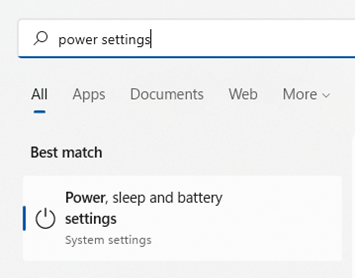
If you’re using Windows, open the search on the Task Bar. Type in “power settings.” This directs you to the power, sleep, and battery settings in your system settings.
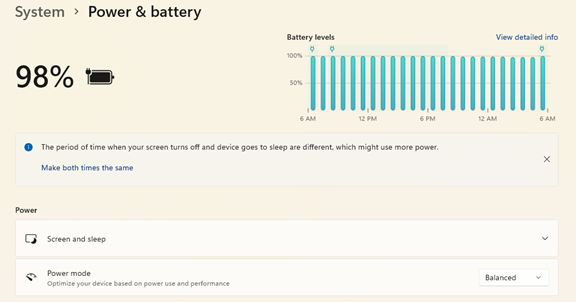
Look for any tips at the top for increasing battery longevity. Such as, making the time your screen goes dark after inactivity and the time it goes to sleep the same.
Then review the settings, such as Screen and sleep, and Power mode. Find the ones that will reduce your PC’s battery consumption. This will extend the time you can go without a new charge.
Enable Battery-Saver Mode
You don’t have to wait until your PC hits 10% for it to go into battery-saver mode. You can control this and enable it yourself in your system settings.
Do you know you’re going to be without a power source for a while? Put your PC in power-saver or battery-saver mode right away, so you can extend the charge as long as possible.
Use the Manufacturer’s Battery Calibration Tool
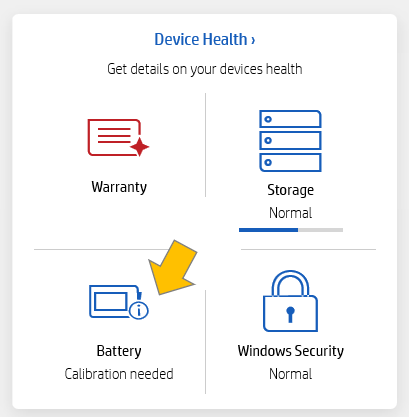
Manufacturers will have their own PC maintenance tools installed. You can use for battery calibration. Sometimes calibrating the battery can correct an issue with a battery life. Especially if life has gotten shorter than when you first purchased your laptop.
Look for a manufacturer’s built-in maintenance app. It will usually be on the Task Bar unless you’ve hidden it. When you open that, you may find that you need to do a calibration or other maintenance task.
Get a Computer Tune-up
If you have processes running in the background it can sap your battery life. Processes that aren’t needed can often run anyhow. Getting a computer tune-up from your IT provider can solve a lot of different issues. This includes such as computers that get sluggish, and often, the battery life too.
Consider Using Microsoft Edge Browser for Its Efficiency Settings
If like most people, you keep a lot of browser tabs open while you’re working on your PC. They could be sapping your battery power.
Consider trying Microsoft’s Edge browser. It has been gaining in popularity ever since it incorporated the Chromium engine. This is the same one Chrome uses.
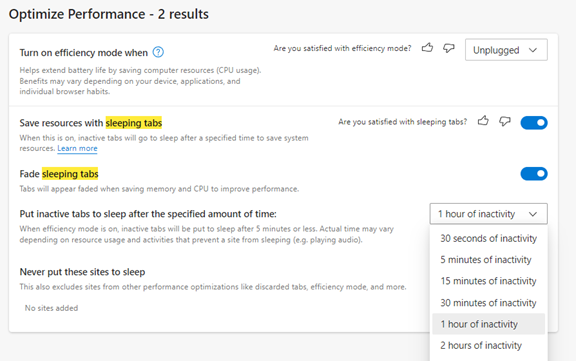
The browser has several power-saving features that you can enable in your settings. Search “sleeping tabs” in Edge settings to find these. They include:
Enable efficiency mode (choose from the available options)
Enable Sleeping Tabs and fade them when asleep
Choose when you would like to put inactive browser tabs to sleep to conserve battery power.
Turn Off Unnecessary Apps Hogging Battery Power
Check the apps that are running on your PC in the Task Manager. Do you really need them all to run when you’re unplugged and trying to conserve battery power?
Often processes that aren’t 100% necessary all the time will be running. Such as an update service or cloud storage syncing app. Close the apps you don’t need to use at that time to lengthen battery life.
Keep Your PC Out of Too Much Heat or Freezing Temps
Both excess heat and freezing temperatures can be bad for a computer. This includes shortening the battery life.
You should never leave your laptop in a car on a hot day or when it’s freezing outside. Also, it might not seem particularly hot to you, but if it’s sunny, the inside of a vehicle can heat up pretty quickly. Be aware of the temperature extremes that your laptop is subject to.
Looking for a PC Tune-Up or Battery Replacement?
We can help you with a full system tune-up or a laptop battery replacement if needed. Don’t struggle with short battery life when you can have that fixed in no time! Give us a call today and let’s chat.
“Hybrid office” is the new buzzword you’ll hear used in business discussions. It’s the mix of having employees both working at the office and working from home. This has become more than a buzzword and is now the reality for many companies.
There was a survey of employees with remote-capable jobs. The survey found that as of February of 2022, 42% of them were working a hybrid schedule. And 39% were working from home full time.
The global pandemic brought on this hybrid office transition. It forced companies to operate with teams that could no longer safely come to the office. During this time, employers and employees experienced the benefits of hybrid work firsthand.
These benefits of remote teams included cost savings for both workers and employers. It also allowed the company to operate with more flexibility. Improved worker morale was another advantage.
One fact surprised many employers that feared remote work would tank productivity. It actually increased in many circumstances.
63% of high-growth companies use a “productivity anywhere” hybrid work approach.
In order for hybrid teams to be productive, they need to stay connected. No matter where they work, the right technology tools should enable them.
One of the leaders in this space has been Microsoft. The company plans to add several exciting updates this year. These will provide more tools for companies to enable their hybrid teams.
Here are some of the ways you can use Microsoft 365 to optimize a productive hybrid office. Note, that some of these features are already out, and others should release later this year.
1. Microsoft Teams & Expanded Features
Microsoft Teams is much more than a team messaging app. The application combines the best features of virtual video meetings and messaging channels. It brings them together into a platform designed to be a secure online work hub.
MS Teams has come a long way in the last five years. And the company continues to add more features to enable hybrid offices. Some of the recent feature updates include:
The ability to do webinar registration
Presenter modes that provide a more professional virtual presence
Increased security through features like smart links and smart attachments
A full business VoIP phone system add-on
The addition of a “metaverse” component called Mesh for Teams
One of the challenges, when everyone isn’t working in the same place, is how to know when to “clock in” and “clock out.” As well as how to let colleagues know whether you are working at home next week or the office.
To help hybrid teams better coordinate, Outlook is getting an update. It will allow users to RSVP to meetings. This can let team members know whether they are attending virtually or in person.
3. Better Framing for More Engaging Meetings
One thing that can distract from the purpose of a meeting is someone’s background at home. Positioning of the camera can also be problematic. One person might have their face taking up 80% of the video screen. Another may only take up 20% because they’re sitting farther away from their PC’s camera.
A new Surface Hub 2S Smart Camera will allow for better face framing. This will affect when people are meeting virtually in Microsoft Teams. Features include adjusting the room view so people’s faces will be clearer. As well as having more consistent sizing.
The video display will also automatically adjust as people join or leave a physical room.
4. Get Better Control of Your Video Using PowerPoint to Present
People often share a screen in a video call and present a PowerPoint presentation. It can be difficult to keep everyone as engaged as when you’re presenting in person.
For example, in person, you can maintain eye contact. People can clearly see your facial expressions as you emphasize various things. That’s not always the case when presenting virtually. The app may push your video feed into a tiny box.
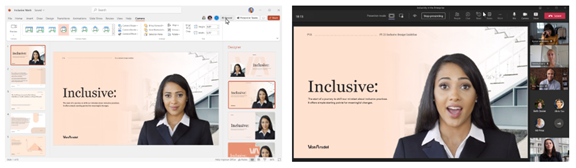
There’s a new upcoming feature for Teams called Cameo. It will allow you to seamlessly integrate PowerPoint with MS teams. You can decide exactly how you want your video feed to appear in relation to your presentation.
Another addition is Recording Studio. This new feature for PowerPoint allows you to record professional-looking on-demand videos. You can do it right inside the app.
Cameo in PowerPoint & MS Teams
5. Get Help With Your Presentation Skills
Microsoft has poured a lot of AI capabilities into Microsoft 365 over the last several years. One that will soon help you deliver better virtual presentations is Speaker Coach.
This is a private and personalized coach. It can help you hone your presentation skills. This improves your switch to the differences between presenting online versus in person.
Some of the feedback it can provide include:
Use of repetitive language
Use of filler words (Ummm)
Speaking pace
Pausing for input
Intonation
Speaker overlaps
And more
Ask Us About Improving Your Hybrid Office Capabilities with Microsoft 365
Microsoft 365 has a ton of helpful features. But it does help to have an expert guide to help you navigate these capabilities. Contact us today to set up a chat about how Microsoft 365 can help your business grow.
When you see those people with two monitors, you may assume they do some specialised work that requires all that screen space, or they just really like technology.
But having the additional display real estate that a second screen provides can benefit anyone, even if you’re doing accounting or document work all day.
We get used to being boxed in by the screen size we have. This can lead to us struggling when trying to fit two windows next to each other or continuously clicking between layers of windows on the desktop.
Most of us have experienced clicking around to find the window we actually need in a layer of different applications. This is one of the things that eats up time during the day and that using dual screens can help eliminate.
According to a study by software developer Mavenlink, 73% of surveyed businesses say they spend over an hour per day on average just switching between different apps.
Productivity Research on Dual-Screens
So just how much can using a second monitor improve productivity? Probably more than you realise.
Jon Peddie Research looked at the benefit of using two screens connected to a desktop computer or laptop for several years. It found that overall, employees in all types of jobs can improve productivity by an average of 42%.
From three studies conducted over 15 years, it also found that between 2002 and 2017, there’s been a significant rise in the use of two monitors, with a compound annual growth rate of 10%.
The company’s namesake put it simply saying, “The more you can see, the more you can do.”
What Are the Advantages of Adding a 2nd Screen?
Do More in Less time
The biggest advantage to using a second monitor is that you can do more in less time because you’re not struggling to get to the windows you need when you need them.
With an additional monitor, you can keep programs like email always open on one screen while you work in other programs on the second screen. You’re able to work more fluidly, getting to all your apps when you need them.
Expands Screen Space for Laptops
Laptops are great for portability, especially when traveling or moving between home and work (as many employees do these days). But the more portable the laptop, the smaller the screen space.
One big drawback of using a laptop is that they will have a smaller monitor. There is also the difficulty in positioning. When using them on a desk, people will often try to prop them up, but the person is still staring down at the screen in most cases.
Connecting your laptop to a monitor can significantly improve the experience and make it like working on a normal desktop PC. You can either choose to mirror your entire screen or still make use of the laptop screen for some activities while using the larger screen for others.
Side-by-Side Comparisons Are Easier
There are a lot of tasks that require looking at data in two windows. You may be editing and comparing a finished design with the original instructions. Or you may have to pull details from notes to include in a PowerPoint presentation.
Trying to get two windows up on a single screen side-by-side can be frustrating. You may try to resize the windows just so, only to have your configuration lost when you have to maximise a screen to click a menu item or scroll.
With two monitors, you have the screen real estate you need to fully open both windows and have them right next to each other so you can easily do your work.
More Freedom During Video Calls
Have you ever been screen sharing on a video call and needed to check an email or review notes? It’s difficult to do that when everyone can see your screen. We often “sanitise” our screens (like turning off alerts, etc.) before we go into a meeting to ensure nothing that should not appear is popping up.
With dual screens, you can choose which screen you want to share during meetings, and still have apps open on the other screen that no one can see. This is a big advantage if you need to check for an email or message someone while you’re sharing your screen.
Fairly Inexpensive Productivity Booster
Purchasing another display is a fairly low investment when looking at technology. A monitor can be purchased from anywhere between £85 – £180 on average. And with a 42% average productivity boost, it can have a pretty sweet ROI.
There is also no big learning curve with this upgrade. Once the monitor is plugged in and the PC is set to see the additional screen, it’s good to go. Users can simply drag apps and documents from one screen to another as if they had one large screen.
Need Help Improving Productivity?
There are several productivity boosts that you can get using the right technology tools, and they don’t have to cost a fortune. Ask us how we can help you!
Purchasing a new computer is a big investment. Many small businesses and home PC owners end up struggling with older systems because they want to get as many years out of them as possible.
Have you found yourself banging on your keyboard in frustration? Have you tried every tip and trick you found online, only to still struggle with a slow PC?
There are some promising upgrades you can do that will cost much less than the price of a new computer, while making your PC feel like new again.
Here are some of the options you can try to improve the performance of an older computer.
Upgrade to a Solid-State Drive (SSD)
Prices for solid-state drives have come down quite a bit in the past few years, making them an affordable upgrade that can breathe life back into an older PC that might be slowing down.
Unlike hard disk drives (HDDs), SSDs do not have any moving parts and use a flash memory that allows for a quicker response time. You can improve your time to boot and your experience when searching files, opening applications, and other activities.
Some of the advantages of upgrading your computer’s hard drive to SSD include:
SSD read/write speeds up to 2500 MB/second compared to HDD at up to 200 MB/second
SSD access time of 0.1ms as compared to HDD at 5.5-8.0ms
SSDs use between 2-5 watts of energy compared to HDD at 6-15 watts
Increase the RAM (Memory)
One upgrade that is very low-cost and can mean a significant increase in performance is a memory upgrade. If your PC was one of the cheaper ones that only had 4GB of RAM when you bought it, you likely have trouble opening too many tabs in your browser or using any graphics-heavy program.
Upgrading your RAM, if your PC has available memory slots, to 8GB or 12GB can make it seem like you have an entirely new computer due to the big increase in speed.
Upgrade the Graphics Card
If you play computer games or work in any type of video, imaging, or 3D software, an outdated graphics card can ruin your experience.
Instead of replacing your entire computer, just upgrading the graphics card to a more robust model can improve your PC’s performance and give you several more useful years from it.
Replace Your PC Cooling System
Heat is an enemy of your computer’s internal parts. If your cooling system is getting worn out and not working the way it should be, then excess heat can be building up inside your device.
When this happens things can get strange, with programs crashing or your system rebooting on its own.
If you suspect excess heat may be an issue, have your computer’s fan and cooling system checked out to see if it needs replacing.
Connect an External Monitor to a Laptop
If you’re working on a laptop and having a hard time multi-tasking due to limited screen real estate, consider getting an external monitor rather than replacing your entire PC.
Monitors are just a fraction of the cost of computers, and having a screen twice the size of the one on your laptop can make all the difference in the world and improve productivity due to the additional screen space.
Replace Your Keyboard
Older keywords can stick, lose keys, and have the writing rubbed off the keys, making it more difficult to tell a “prt screen” from a “delete” button. If the performance of your PC is hampered by a frustrating keyboard, an upgrade can be a very inexpensive way to improve your equipment.
Get an External Hard Drive
Computers can slow down and be more difficult to use when the hard drive fills up with data. Over the years, files build up, and many users never take the time to go through and delete those that are unnecessary.
Buying an external hard drive can allow you to offload files that may be slowing you down, while still keeping them easily accessible.
Another benefit of an external hard drive is that it’s portable and can easily be carried between home and work and used in both places.
Get a Professional Computer Tune-Up
Those free PC cleaner tools you find online aren’t going to give you the type of tune-up that a professional IT provider can give. We will go through things like the Windows Registry, duplicate system files, internal errors, and more to clean up your system and remove all the “junk” that has built up over the years.
We can also do a maintenance check for things like failing parts, and provide expert guidance on your most impactful upgrade options.
Get Help Improving Your Computer’s Performance Today!
Don’t struggle with an older PC! We can help you with cost-effective upgrade options that will fit your system and budget perfectly.
Burton Technologies Ltd is registered in England & Wales: Registered Number 13901816 VAT registration number 403763413 Mailing Address: 52 Chambers Avenue, Romsey. SO51 5BE